Help & how-to guide
Everything you need to check and clean PDFs with PDFSanitize, step by step. Every tool runs in your browser: your files are never uploaded, and there's no account to create.
Quick start: clean a PDF in 4 steps
All the free tools work the same way. Here's the whole journey, using the privacy check and metadata removal as the example.
1. Choose a tool
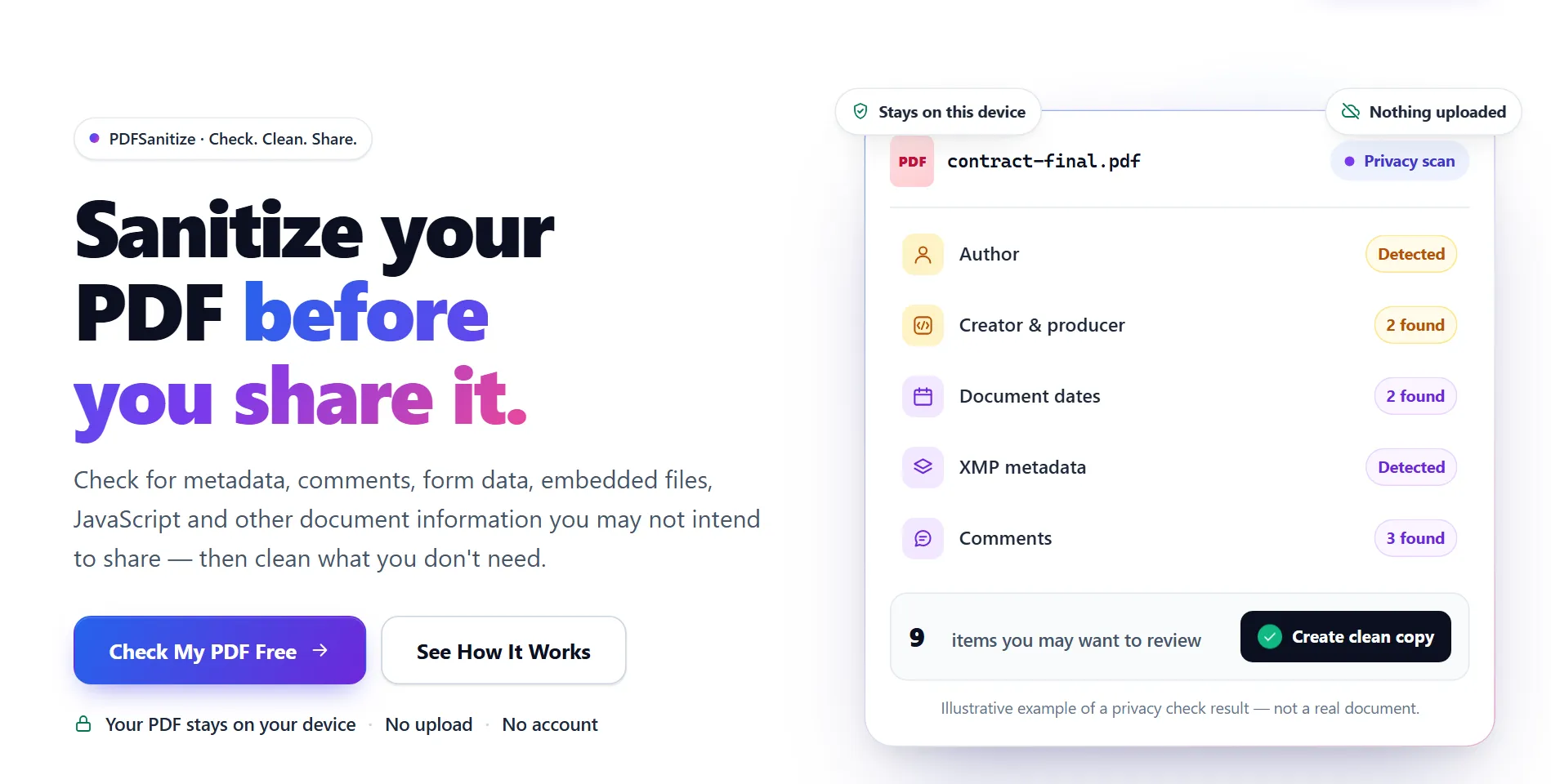
Not sure what's in your file? Start with the PDF Privacy Checker. It looks for the common kinds of hidden information and sends you to the right tool. The home page button "Check My PDF Free" opens it.
2. Choose your PDF
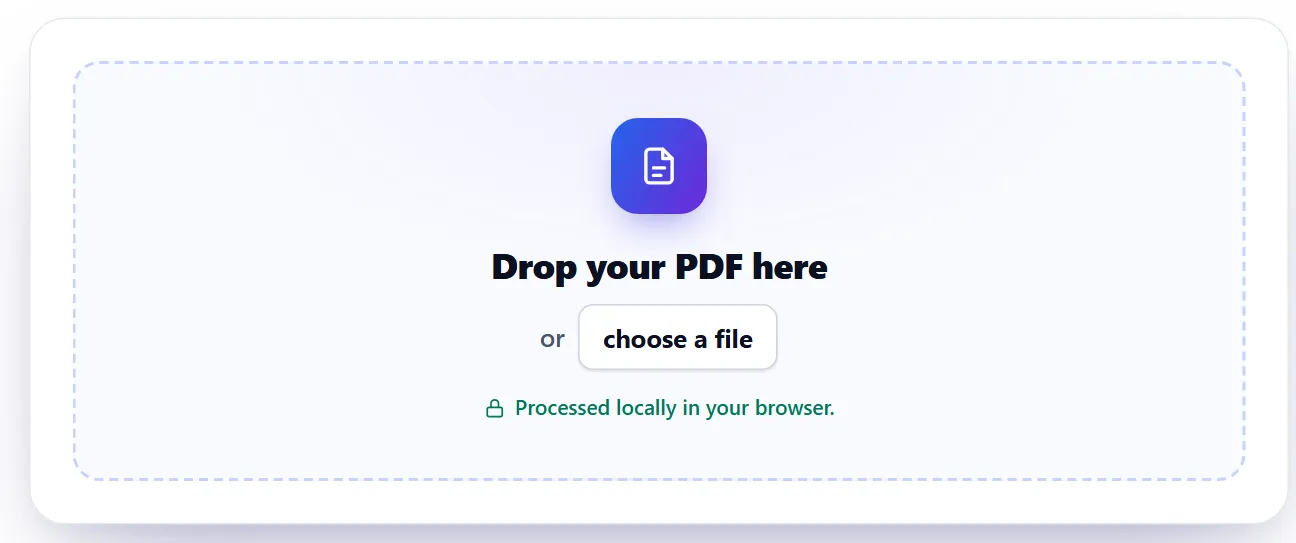
Drop the file onto the page, or press "choose a file" and pick it. The file is read by your browser on your device; nothing is sent anywhere. One PDF at a time in the free tools.
3. Review what was found
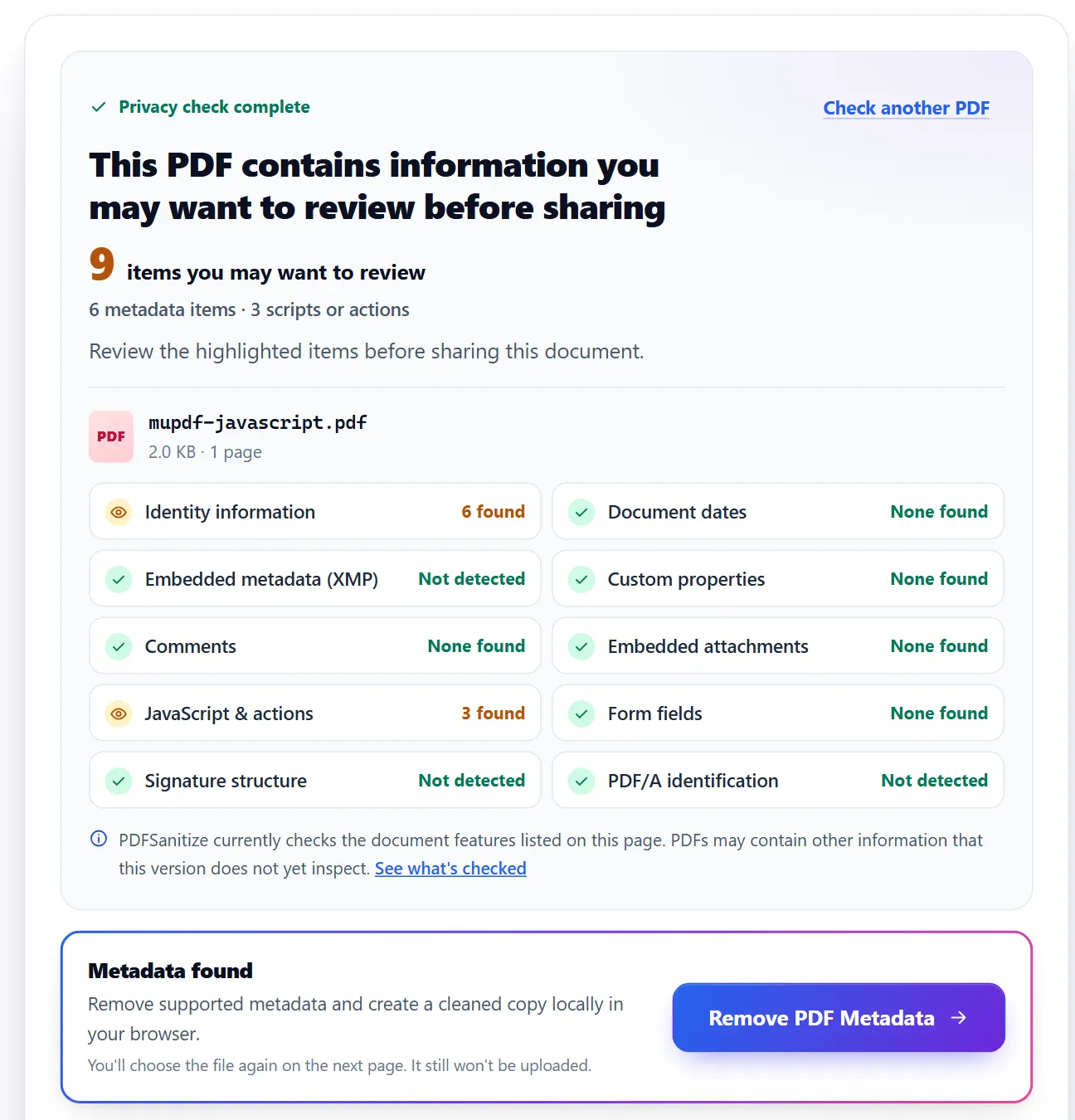
The report groups what the tool found: identity information such as author and creator app, dates, comments, form values, attachments, JavaScript, and more. Anything marked "found" is worth a look before you share. "None found" and "Not detected" mean that check came back clean.
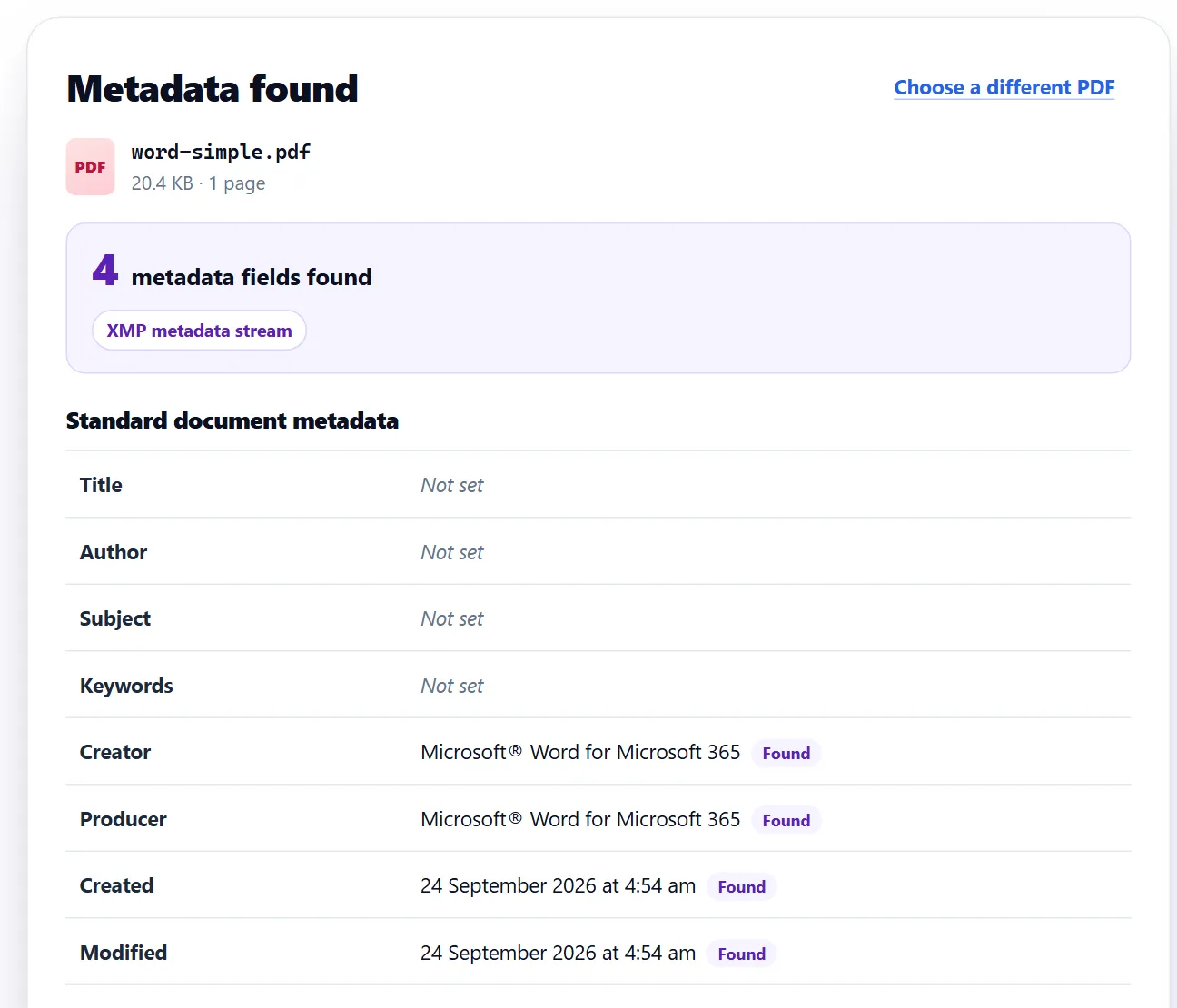
Each cleaning tool also shows exactly what it will change, field by field, before you do anything. Here, the PDF Metadata Remover lists the metadata in a PDF exported from Word.
4. Clean and download
Press the main button (for example "Remove PDF Metadata"). The tool creates a new, cleaned copy, then checks that copy again and shows you before and after. Press "Download Cleaned PDF" to save it. Your original file is never changed, so keep it if you might need it.
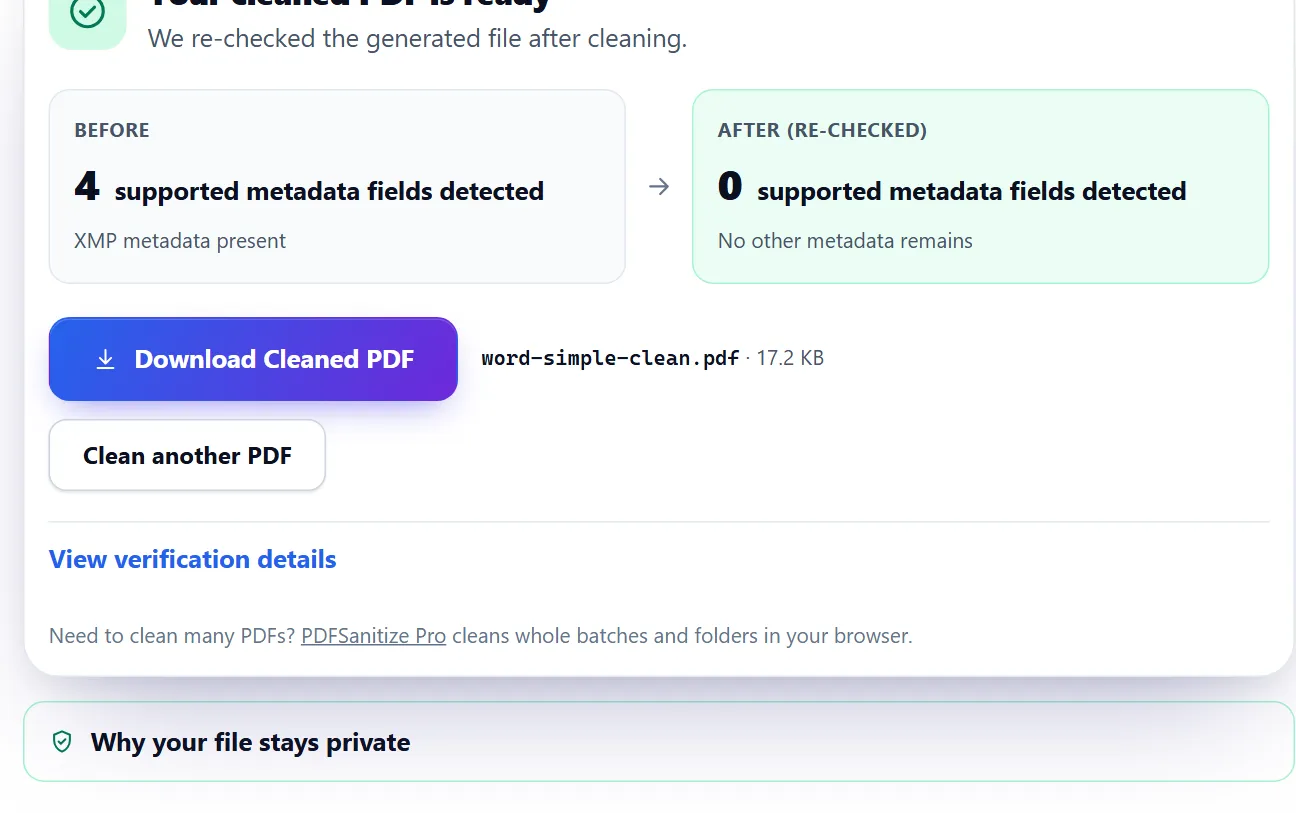
Tip: if the result says "with limitations", read the note under it. It tells you what couldn't be confirmed, so you can decide whether the copy is good enough to share.
Which tool do I need?
Pick the task; each link opens the tool.
| Tool | Use it to… |
|---|---|
| PDF Privacy Checker | See everything a PDF may reveal before you share it. Start here if you're not sure. |
| View PDF Metadata | Read the author, dates, creator app and other properties without changing the file. |
| Remove PDF Metadata | Remove the author, creator, dates and other properties. |
| Edit PDF Metadata | Change the title, author, subject or keywords instead of removing them. |
| Remove Comments | Remove review comments and sticky notes. |
| Remove Annotations | Remove highlights, stamps, drawings and other markup as well as comments. |
| Remove Highlights | Remove highlights only, keeping the text underneath. |
| Clear Form Fields | Empty what was typed or selected in a form, keeping the blank form. |
| Remove Attachments | Remove files embedded inside the PDF. |
| Remove JavaScript | Remove scripts and actions that run automatically. |
| Flatten PDF | Turn form fields and annotations into ordinary page content so they can't be edited. |
| Redact PDF | Permanently remove text or images from areas of a page. |
Need to do the same cleaning on many files? PDFSanitize Pro runs a whole batch or folder in one go.
Signed, PDF/A and protected files
Digitally signed PDFs
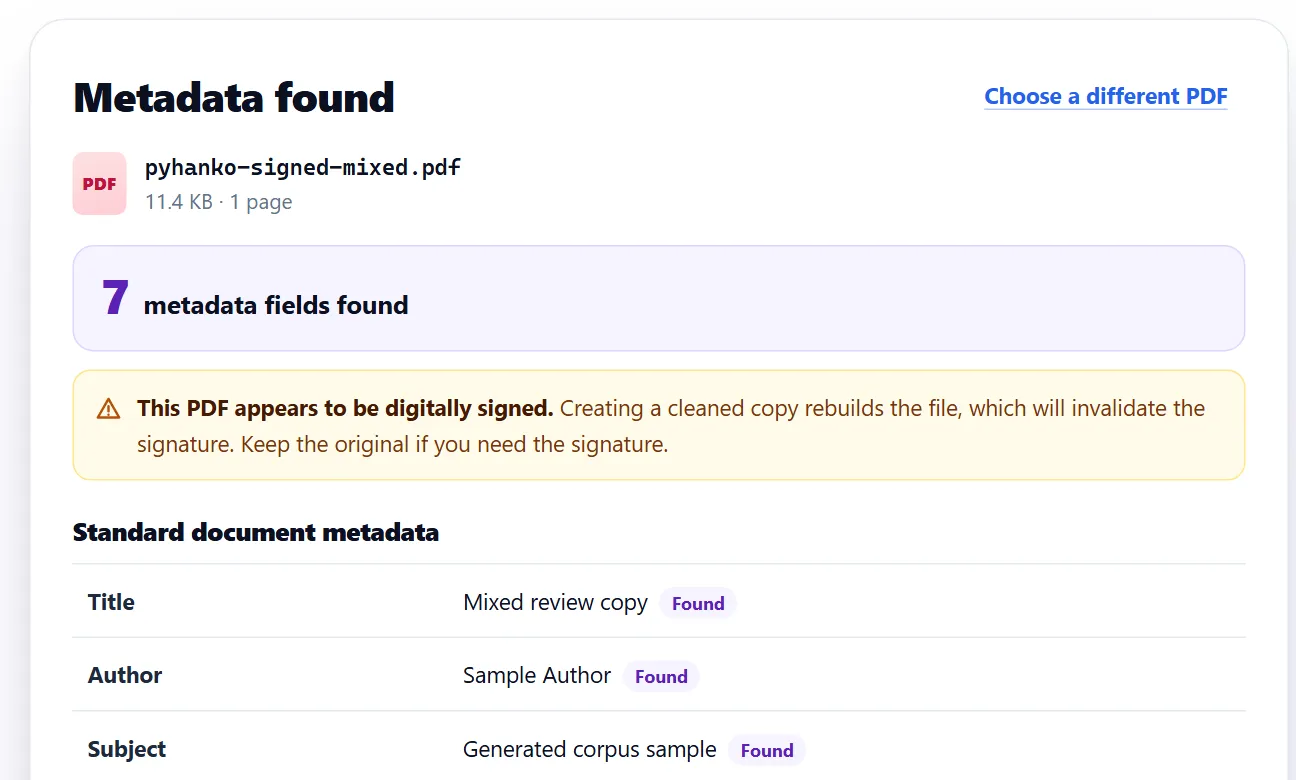
Any change to a signed PDF rebuilds the file, which makes the existing signature invalid. When a tool detects a signature, it warns you and asks you to confirm before it creates a changed copy. If you still need the signature, share the original instead.
PDF/A (archival) files
Changing a PDF/A file can remove its PDF/A identification. The tools tell you when that happens and ask you to confirm first. PDFSanitize doesn't validate PDF/A conformance.
Password-protected PDFs
Password-protected and other encrypted PDFs aren't supported. The tool tells you so and doesn't try to get around the protection.
Redacting text and images
Redact PDF permanently removes what's under the boxes you draw. It doesn't just cover it with a black shape.
- Choose your PDF. Its pages open in a viewer; move between them with the arrows or the page list.
- Drag on the page to draw a box over what should go. Drag a box to move it. To remove a box, select it and press Delete, or use its × button.
- Check the list of redaction areas next to the page (below it on a phone). It shows every box you drew.
- Tick "I understand that redacted pages will be permanently rebuilt", then press "Apply Permanent Redaction".
- Download the redacted copy and check it before sharing.
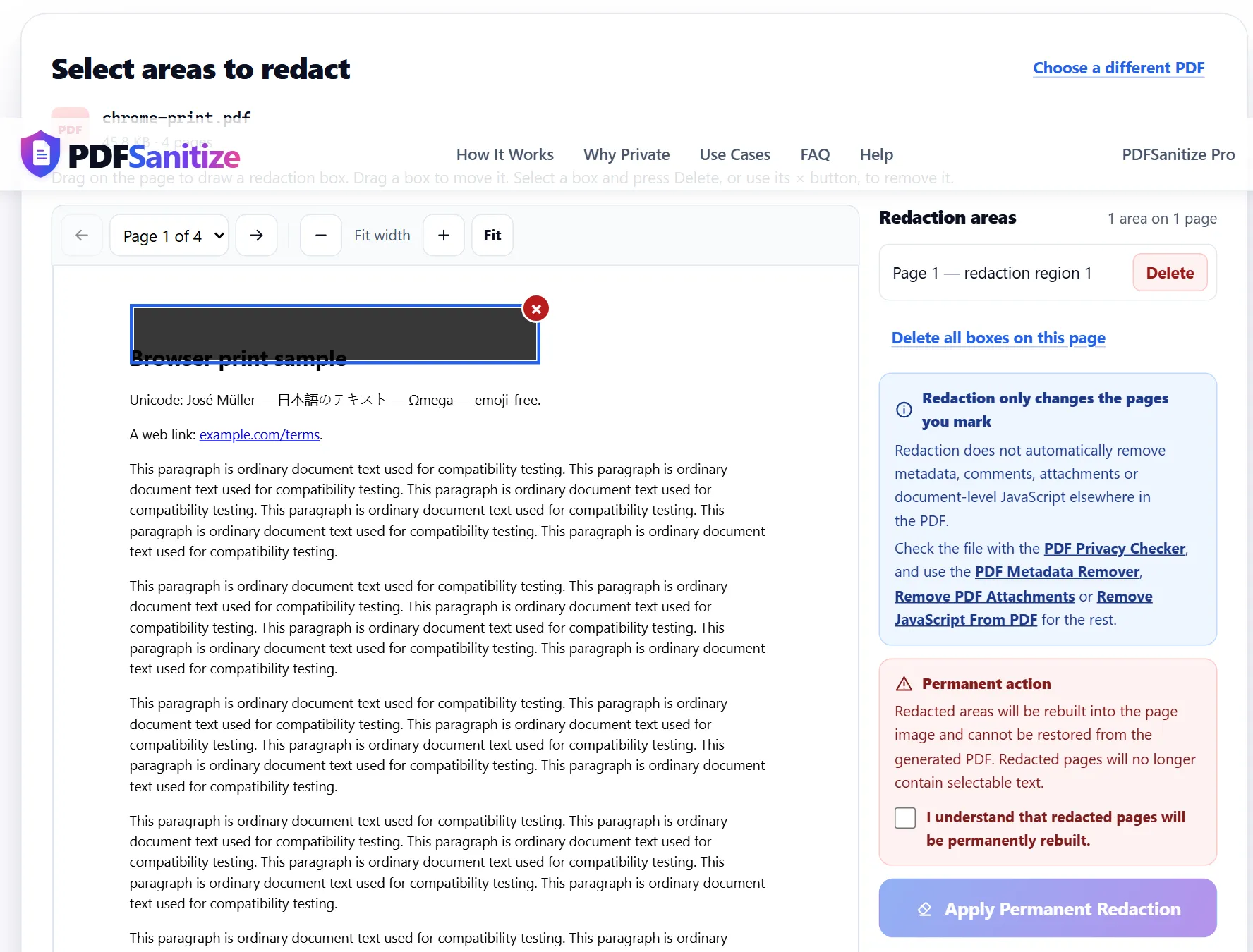
Good to know: pages you redact are rebuilt as images, so their text can no longer be selected or searched. Redaction only changes the pages you mark. Use the PDF Privacy Checker afterwards for metadata, comments, attachments or JavaScript elsewhere in the file.
Using PDFSanitize Pro
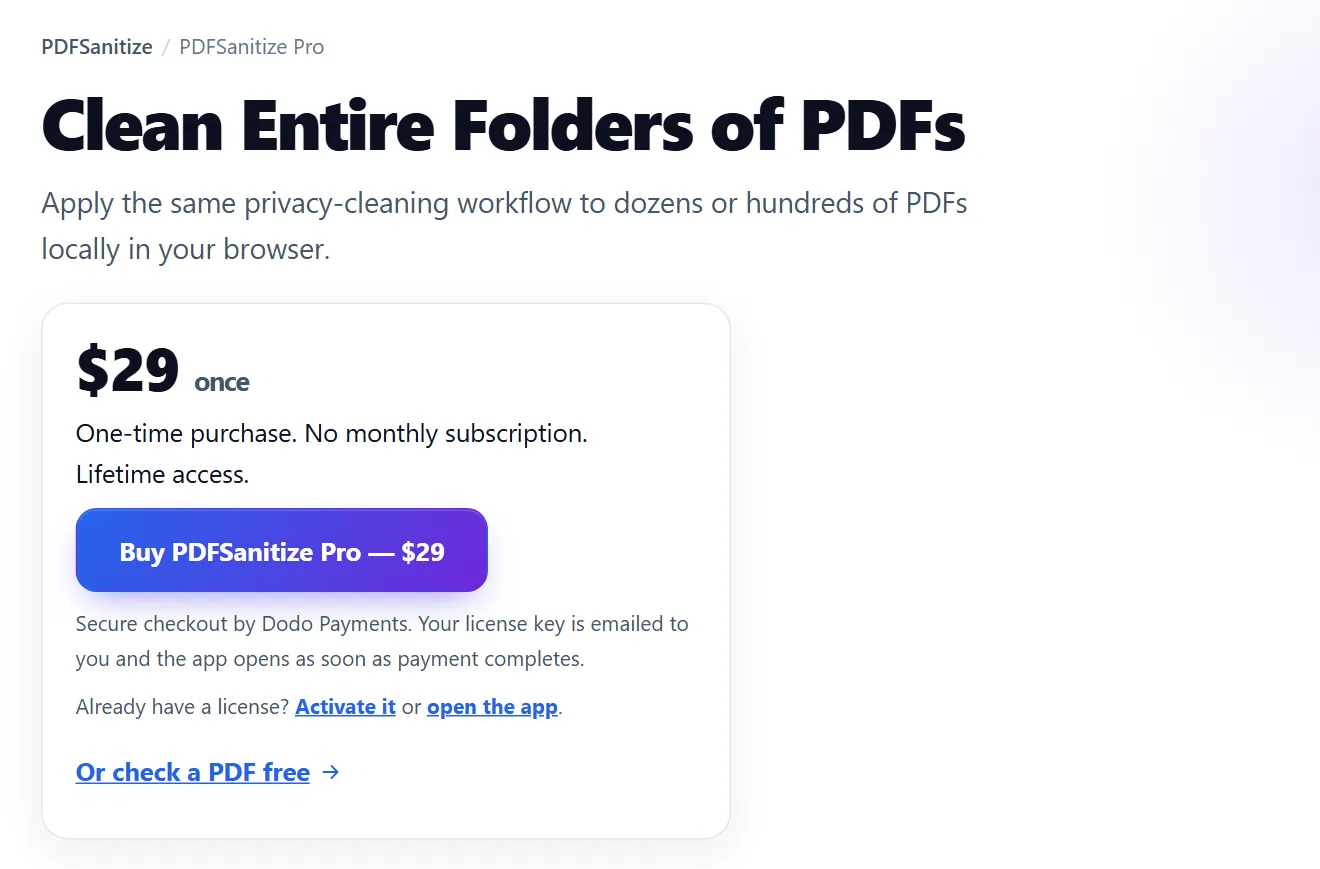
PDFSanitize Pro applies the same cleaning to many PDFs at once, still entirely in your browser. It's a one-time purchase with lifetime access.
Buy and open the app
On the PDFSanitize Pro page, press "Buy". Checkout is handled by Dodo Payments. When the payment completes, the app opens automatically, and your license key is emailed to you. Keep that email.
Activate on another browser or device
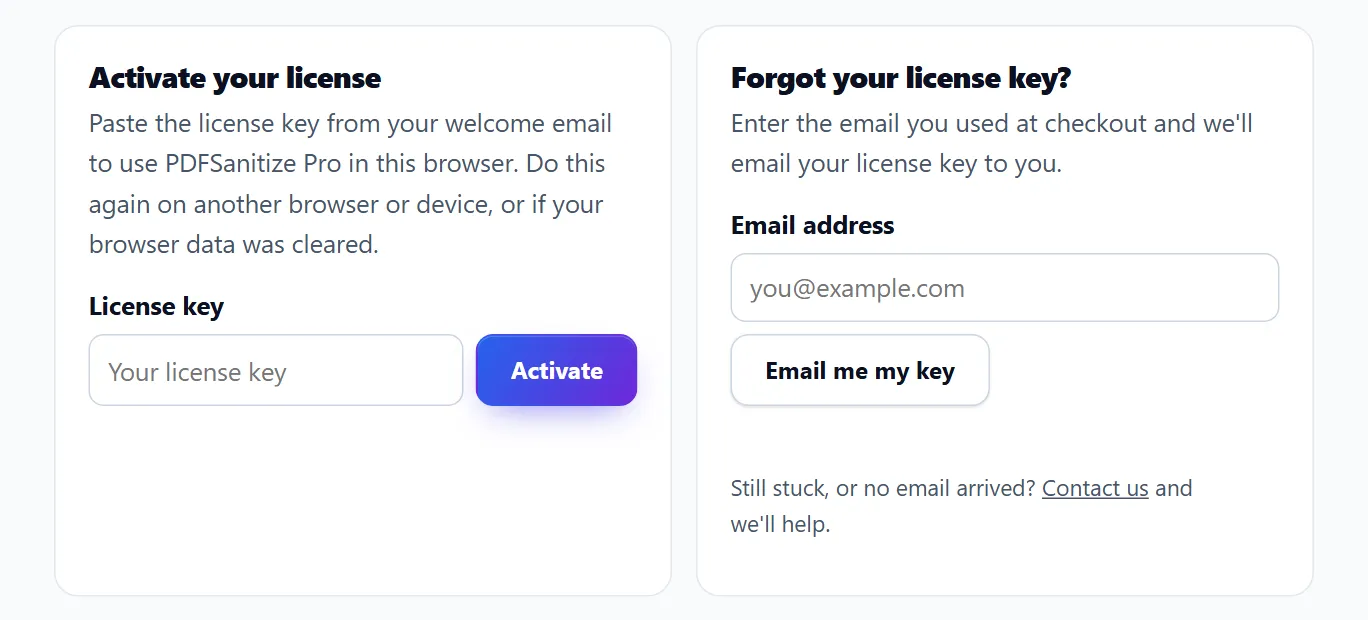
Your license is remembered in the browser where you activated it. On a new browser or device, or if your browser data was cleared, open the Activate your license section, paste the key from your welcome email and press "Activate".
Lost the email? Use Forgot your license key? with the email address you used at checkout, and we'll send the key again.
Clean a batch
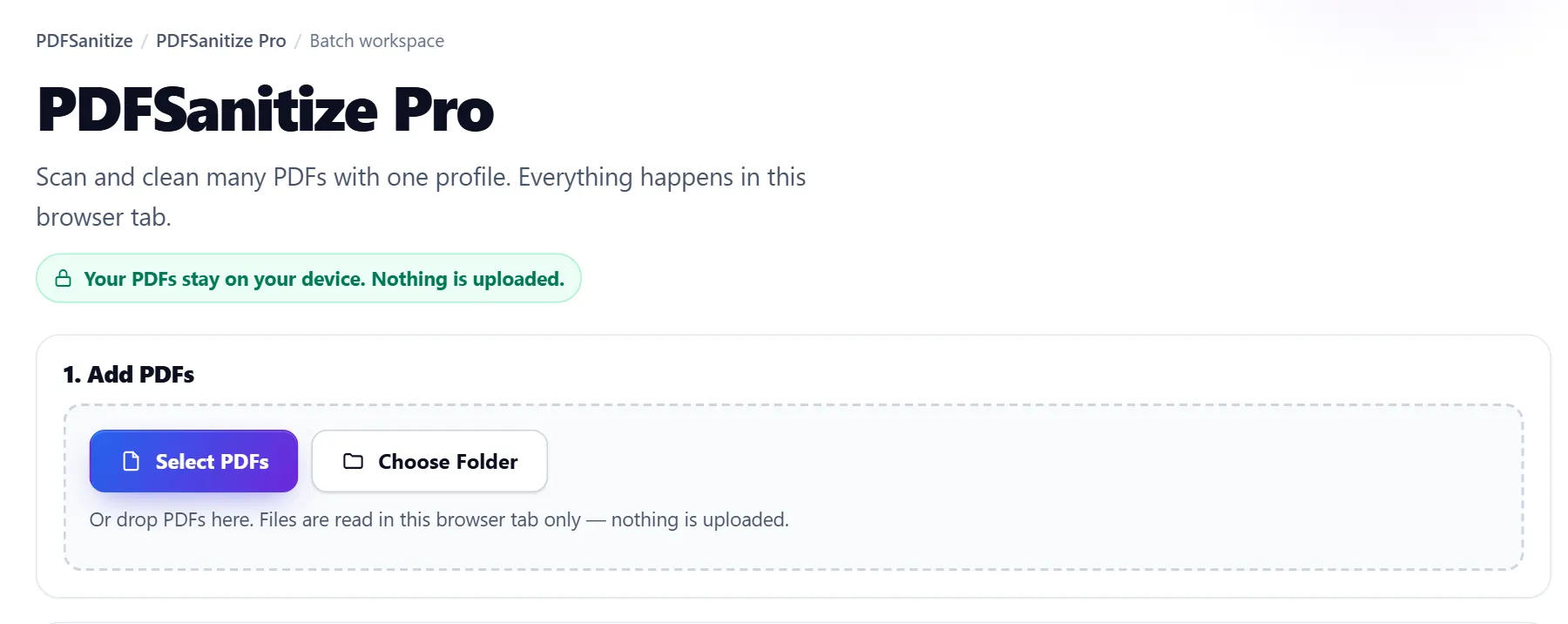
- Press "Select PDFs", or "Choose Folder" in browsers that support it. You can also drop files on the page.
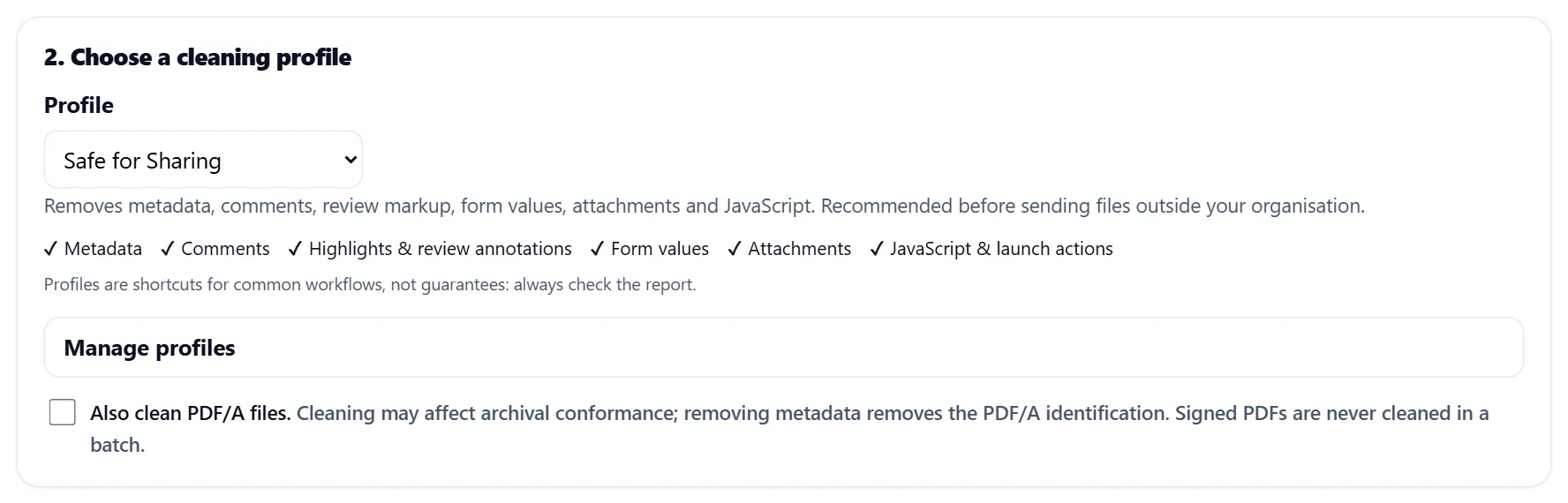
- Choose a cleaning profile, such as "Safe for Sharing". The ticks show exactly what it removes.
- Press "Start Cleaning". Each file is scanned, cleaned and checked again.
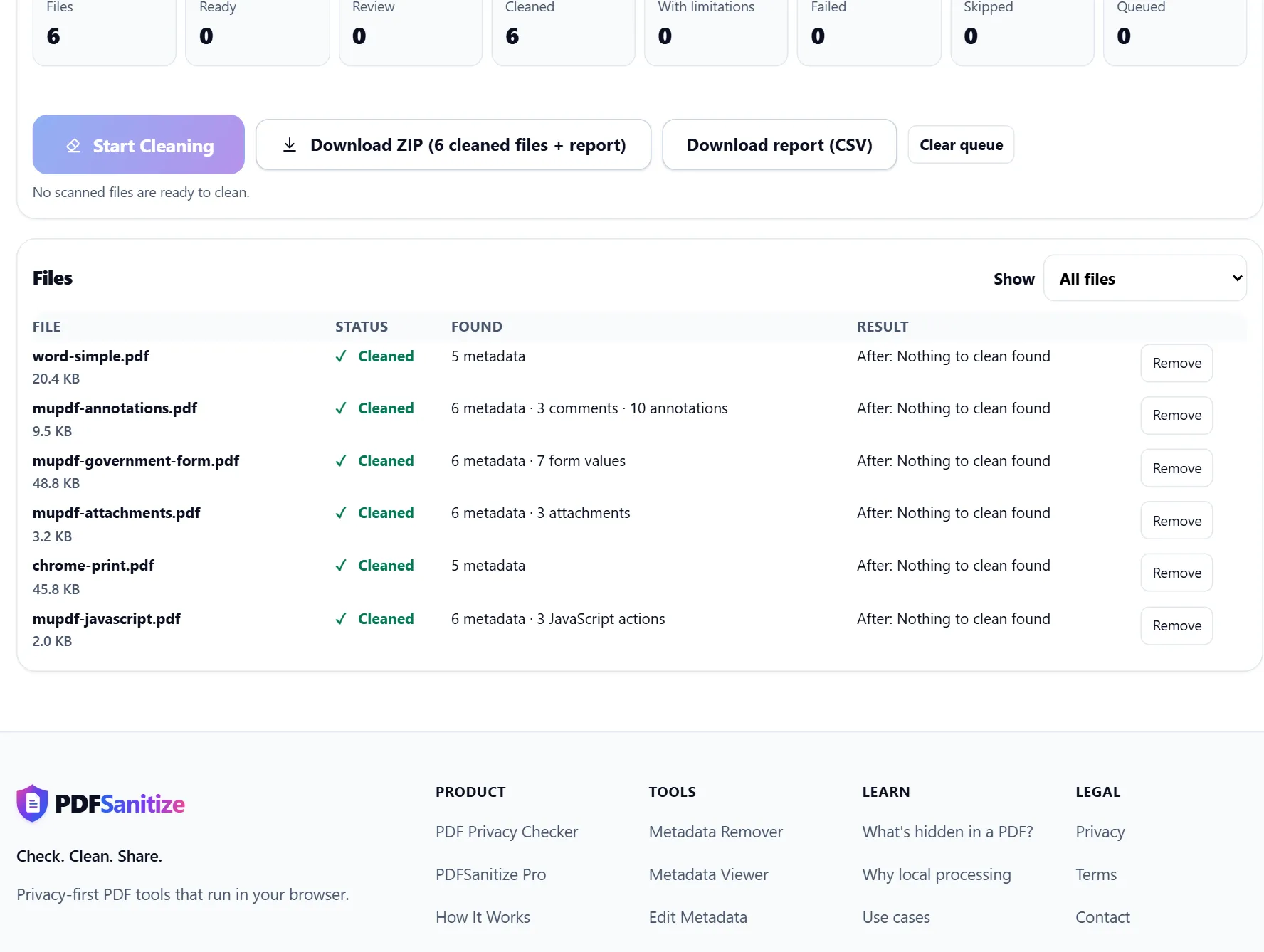
When the batch finishes, each file shows its result. Signed PDFs are never cleaned in a batch, and PDF/A files are only cleaned if you allow it. Download all the cleaned files as one ZIP, which includes a report, or download the report on its own as a CSV file.
Troubleshooting
Is my PDF uploaded anywhere?
No. The tools read and change your file inside your browser tab. Each page also carries a browser security policy that blocks it from sending data out. See the privacy page for details.
The tool says it couldn't open my file
The file may be damaged, not really a PDF, or password-protected. Try opening it in your usual PDF viewer. If it opens there, save or print it to a new PDF and try again.
Nothing was found. Is my PDF safe to share?
"Nothing found" only covers what that tool checks. The visible text and images on the pages, and the file name, can still identify people. Always read a document before sharing it.
The download didn't start
Press the download button again and check your browser's downloads list. Some browsers ask where to save the file, or block downloads until you allow them for the site.
The Pro app asks me to activate again
That's expected on a new browser or device, or after clearing browser data. Paste your key in Activate your license, or have it emailed to you again.
Still need help?
Send us a message with the contact form. Tell us which tool you used and what happened, but don't send the PDF itself; we never need your files to help.